Help & support

Help & support

Everything you need to import your products effortlessly: column mapping in three steps, what to export from your software or online shop, and the ready-to-fill template. A question? Write to us from your account.

Mapping in 3 steps

Mapping means matching the columns of your file with the catalogue information: name, price, photo… There is nothing to rename: Beautiful reads your column headers (in English, French or Spanish) and also looks at their content (a column full of image addresses, prices or barcodes is recognised on its own).

Send your file

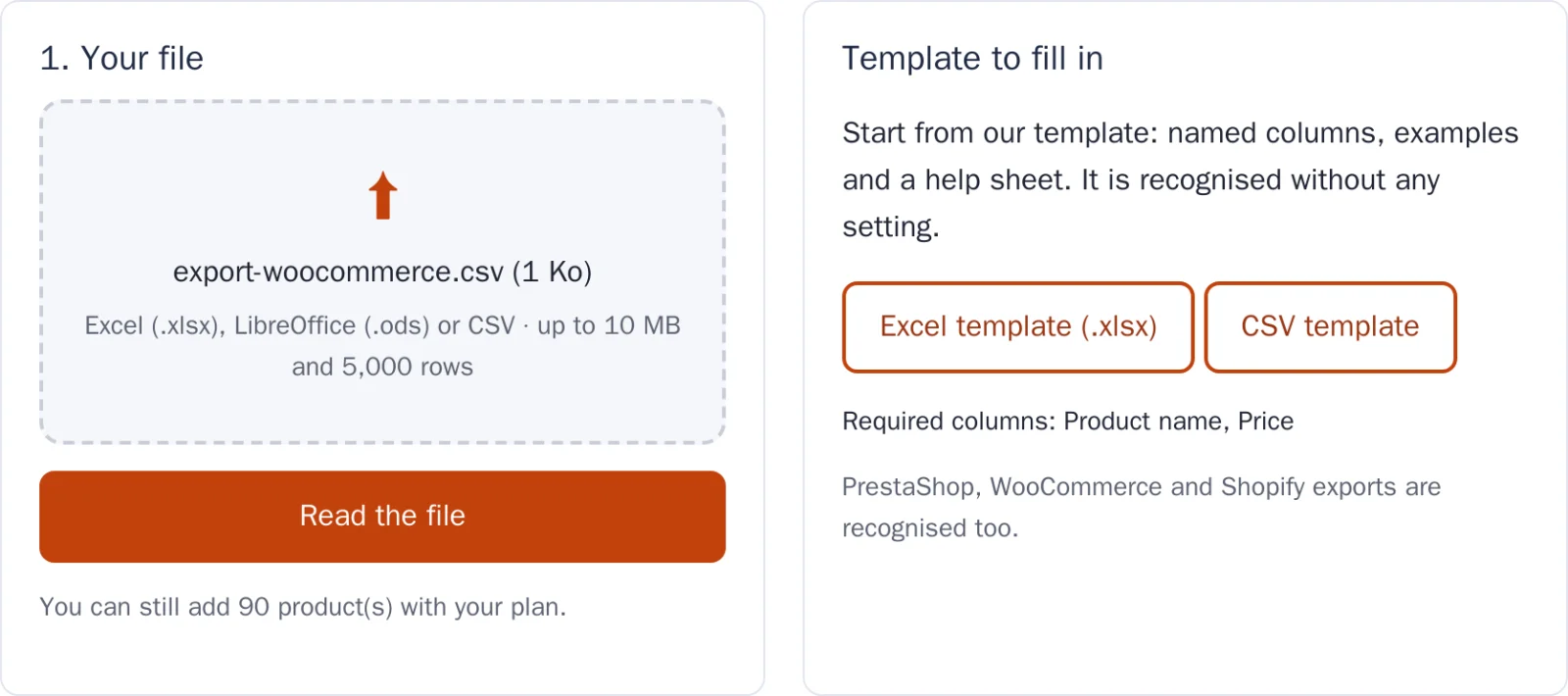
In My account › Products › Import, drop an Excel (.xlsx), LibreOffice (.ods) or CSV file. The separator (semicolon, comma, tab) and the encoding (UTF-8, Windows, Excel) are detected automatically.

Step 1: choosing the file to import, and the template to download

Check the column matching

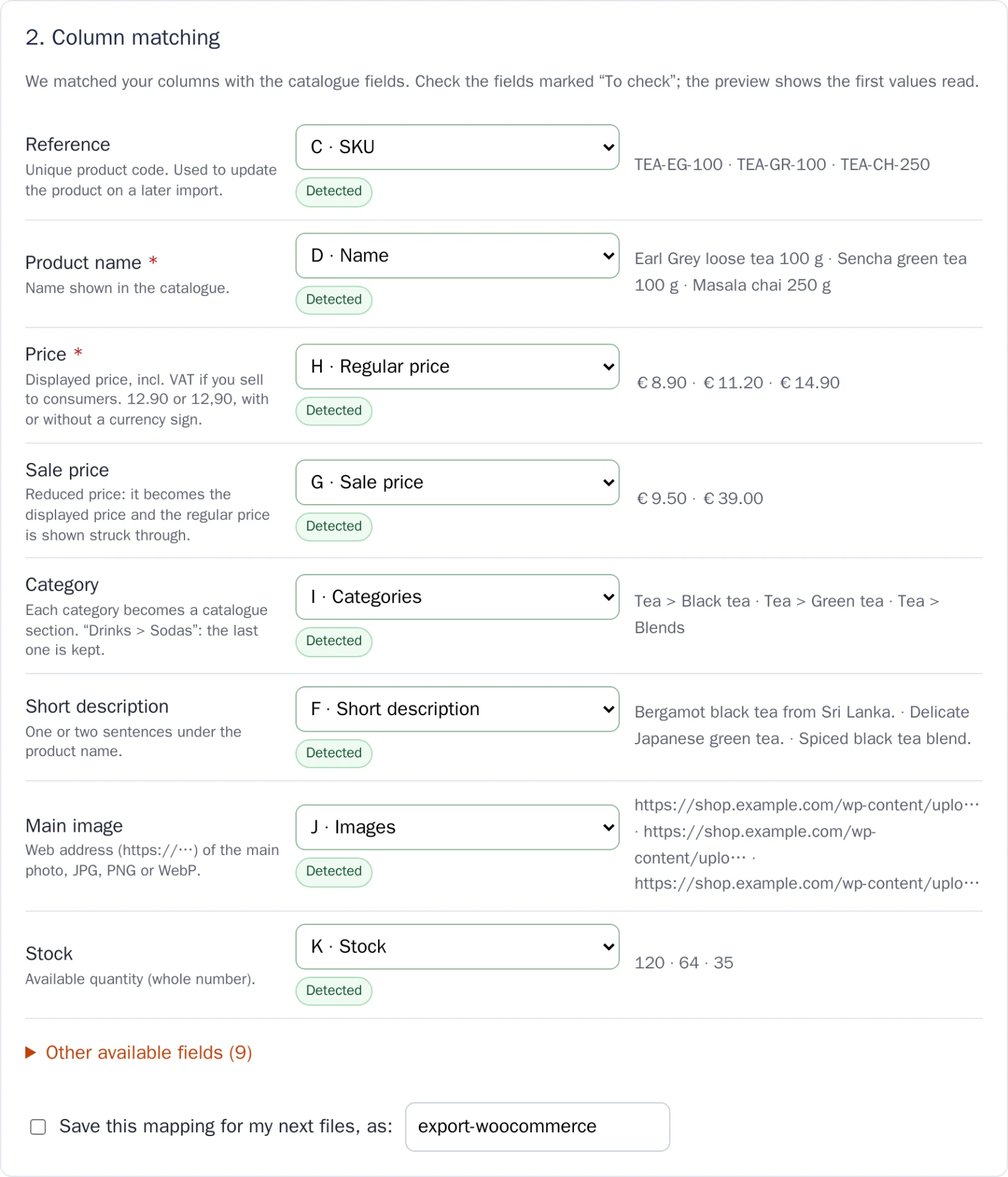
Each catalogue field is linked to a column of your file, with a preview of the first values read:

  • Detected: the column was recognised with certainty.
  • To check: the match is likely, have a look at the preview.
  • To correct it, pick another column from the list; “— Do not import —” skips a field.
  • Other available fields opens the optional information (brand, EAN, stock, new…).
  • Tick Save this mapping: it will be applied automatically to your next files with the same columns.
Step 2: matching the file columns with the catalogue fields

Choose the products to import

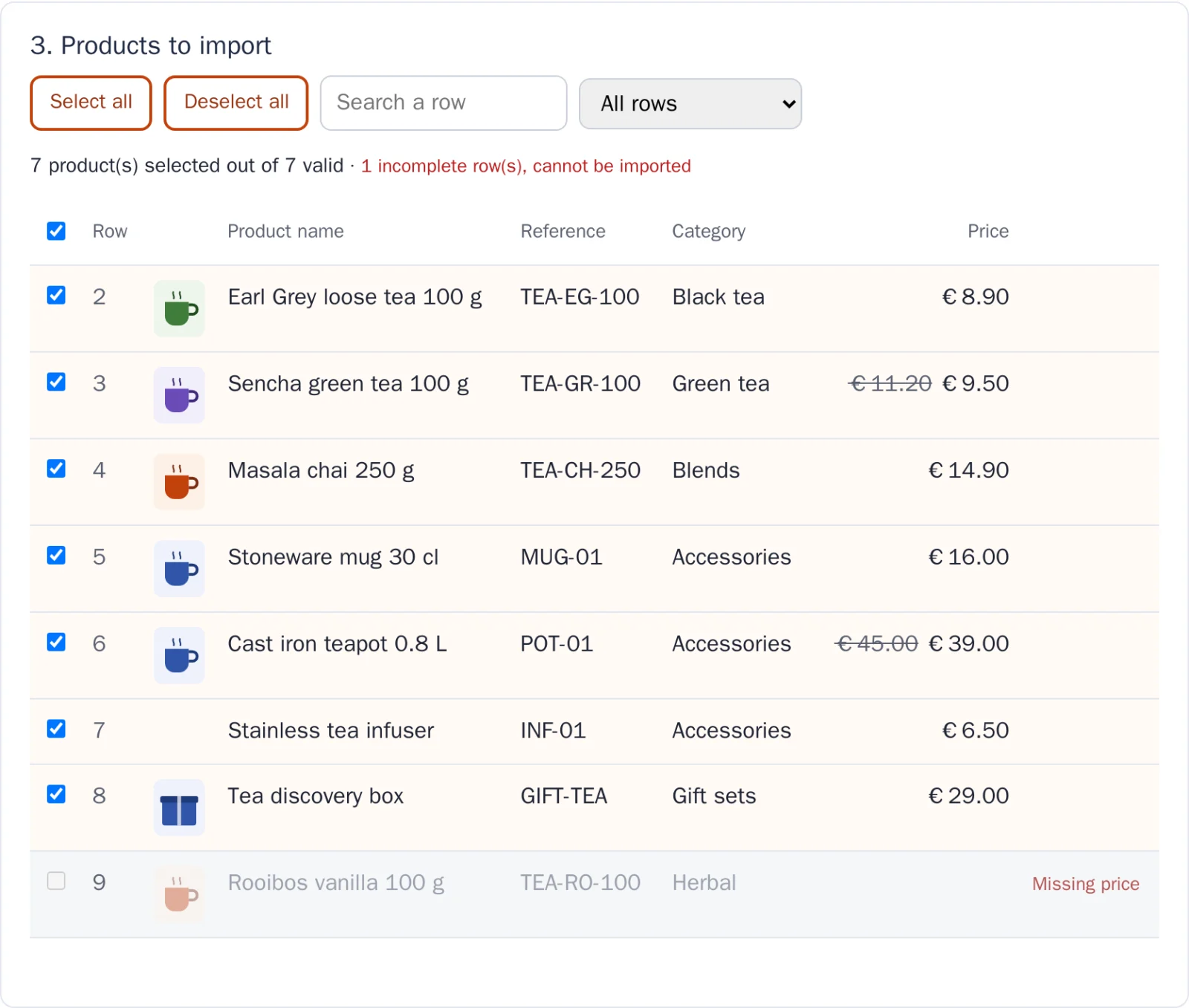
All valid rows are ticked. A greyed-out row cannot be imported: the reason is shown on the right (for example “Missing price”). Search, filter, untick what you don’t want, name the list, then click Import. Photos are then downloaded from their address.

Step 3: choosing the products; a row without a price is greyed out

Recognised information

Only the name and the price are required. Columns you don’t link to anything are simply ignored.

InformationExamples of recognised headersExpected format
Reference Reference, Ref, SKU, Item code, Product code Unique product code. Used to update the product on a later import.
Product name required Name, Product name, Title, Item name Name shown in the catalogue.
Variant Variant, Variation, Attributes, Options Size, colour, volume… (e.g. “500 g”, “Red, XL”).
Price required Price, Regular price, Retail price, Unit price, Variant Price Displayed price, incl. VAT if you sell to consumers. 12.90 or 12,90, with or without a currency sign.
Sale price Sale price, Promo price, Discount price, Special price Reduced price: it becomes the displayed price and the regular price is shown struck through.
Old price Old price, Compare at price, Was price, MSRP Previous price shown struck through, if higher than the price.
Category Category, Categories, Product type, Department Each category becomes a catalogue section. “Drinks > Sodas”: the last one is kept.
Short description Short description, Summary, Excerpt One or two sentences under the product name.
Description Description, Long description, Body (HTML) Detailed text (HTML is cleaned).
Main image Image, Images, Photo, Main image, Image Src Web address (https://…) of the main photo, JPG, PNG or WebP.
Additional images Additional images, Gallery, Other images Other photos: several addresses separated by “|” or “,”.
Brand Brand, Manufacturer, Vendor Brand or manufacturer.
EAN EAN, EAN13, Barcode, GTIN, UPC Barcode, 8 to 14 digits.
MPN MPN, Manufacturer part number, Part number Manufacturer part number.
Product URL Link, Product URL, Permalink Product page on your website (clickable link in the reader and the PDF).
Stock Stock, Quantity, Qty, Inventory Available quantity (whole number).
New New, Is new, Novelty Yes / No: shows the “New” badge.

From your software or shop

Start from the export you already have: no need to edit it. Here is where to find it and what to know.

PrestaShop

Online shop

Catalog › Products, then the tools icon above the list › Export to CSV. Filter the list before exporting if you only want part of the catalogue.

The file holds the image, name, reference, category, price excluding tax and price including tax: the price including tax is chosen. Descriptions are not included.

WooCommerce

WordPress shop

Products › All Products, Export button at the top of the page, then Generate CSV.

Name, SKU, regular price, sale price, categories, images and descriptions are recognised. With several images, the first one becomes the main image.

Shopify

Online shop

Products › Export, choose All products and the CSV for Excel or plain CSV format.

Rows that only hold an extra image are greyed out (no name, no price): this is expected, they are skipped.

Business software, POS, ERP

Sage, QuickBooks, Odoo, Dolibarr, POS software…

In the items list, look for Export (or “Print › Excel”) and choose Excel or CSV.

Keep at least the item name and the selling price; the item group becomes the category, the barcode the EAN. If the software has no photo address, add a column with the image addresses from your website, or import without photos.

Other website, marketplace or spreadsheet

Wix, Etsy, your own Excel file…

Most platforms offer a CSV product export in their admin area. A spreadsheet you maintain yourself works too, as it is.

Without an export, start from the template below. For the photo, right-click the image on your website › Copy image address and paste it into the Image column.

The template

No export at hand? The template already has the right columns, three examples and a “Help” sheet. It is recognised without any setting.

  • Row 1 holds the headers: keep it. Required columns are orange and marked with an asterisk.
  • Replace the three example rows with your products.
  • Unused columns can be deleted; an added column is simply ignored.
  • Price: 12.90 or 12,90, with or without a currency sign. Image: full address starting with https://.
  • One row per product; a variant (size, colour) can have its own row using the “Variant” column.

The template is downloaded from your (free) account.

Create a free account Log in

The Excel template: headers, required columns in orange and examples

Common issues

Accented letters look wrong (é, ?)

The encoding is normally detected. If the problem persists, save the file as Excel (.xlsx) or CSV UTF-8 from your spreadsheet, then send it again.

A row is greyed out

It lacks required information (name or price), or the price cannot be read. The reason is shown at the end of the row. Fix the file or pick another column in step 2.

The imported price excludes tax

When the file has a price excluding tax and a price including tax, the latter is chosen. Otherwise, pick the right column for “Price” in step 2: the catalogue shows the price as it is.

Photos don’t show

The address must be public, start with http:// or https:// and lead to a JPG, PNG, WebP or GIF image. In the product list, each failed photo tells why (access denied, not found, site too slow…).

My file has several sheets

Only the first visible sheet is read: put your products there.

There is a title above the headers

The first non-empty row is used as headers. Delete the title or logo rows above it.

My file is too big

A file can be up to 10 MB and 5,000 rows. Beyond that, split it into several files. Your plan also sets the total number of imported products (100 on the free plan).

I often re-import the same file

Save the mapping in step 2: it is applied automatically to any file with the same columns. Each import creates a new product list.

A category such as “Drinks > Sodas”

For a category tree, the last category is kept (here “Sodas”): each category becomes a catalogue section.

Ask for help

Describe the issue and attach your file or a screenshot if needed: we reply by e-mail and here, in your request history.

Support requests are reserved for signed-in users, so we can look at your account and files.

Log in Create a free account